How to Read Your X (Twitter) Analytics: Impressions, Engagement Rate and What to Track
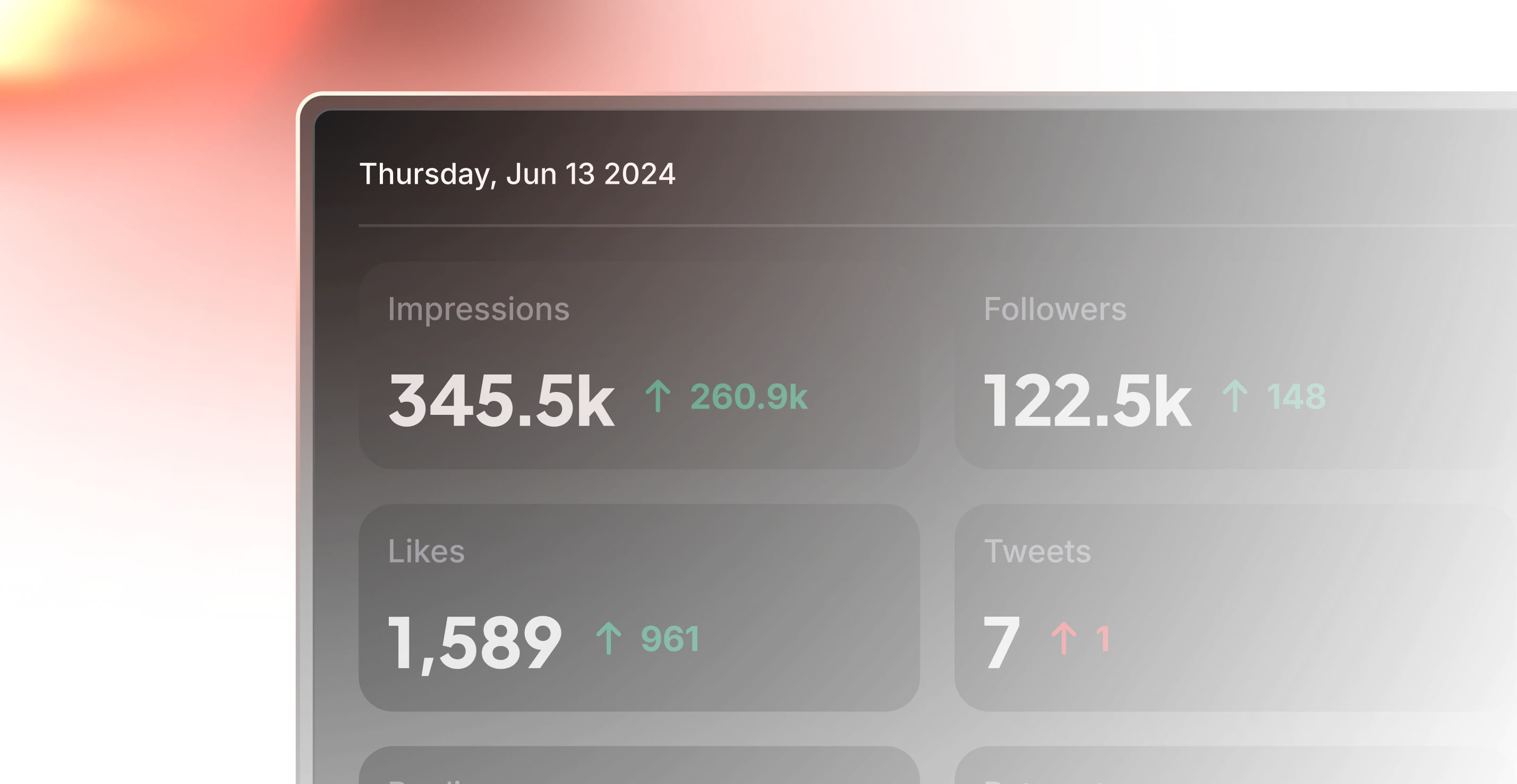
X (formerly Twitter) gives every account a set of analytics, and third-party tools add more. The numbers are useful only if you know what each one measures and which ones connect to your goals. This guide explains the main metrics, how to calculate engagement rate, what to track over time and how to turn the data into decisions without chasing vanity numbers.
Know the core metrics
Names vary slightly between X's own analytics and other tools, but the building blocks are the same:
- Impressions: how many times a post was shown on screens. One person can create several impressions, so this is not the number of people reached.
- Engagements: the total number of interactions with a post, which can include likes, replies, reposts, quotes, bookmarks, profile clicks, link clicks and media expands, depending on how the tool counts them.
- Likes, replies, reposts and bookmarks: the individual interactions. Replies and reposts usually signal stronger interest than likes; bookmarks suggest people found it worth saving.
- Profile visits: people who clicked through to your profile, often the step before following.
- Link clicks: how many times people clicked a link in your post, the key number if you are sending traffic to a website.
- Follower change: new followers minus unfollows over a period.
On X, you can usually see per-post numbers by opening a post and viewing its analytics, while account-level totals sit in the analytics section of your account; the exact layout and which metrics appear can depend on your account type and subscription. Export or note your numbers regularly, because the date ranges shown in built-in dashboards are limited and it is much easier to spot patterns when you have several months of data side by side.
Calculate engagement rate properly
Engagement rate lets you compare posts of different reach. The most common formula is:
Engagement rate = engagements / impressions x 100
A post with 150 engagements and 10,000 impressions has a 1.5% engagement rate. Some tools divide by follower count instead, which gives a very different number, so check which formula a tool uses before comparing figures across tools or with benchmarks you read online. Also check whether "engagements" includes clicks and media expands or only public interactions such as likes, replies and reposts. Whatever you choose, use the same definition every time you compare.
Decide what to track for your goal
Different goals need different metrics. Pick two or three that matter for yours:
- Building an audience: profile visits, follower change and reposts, which put you in front of new people.
- Driving traffic or sales: link clicks and click-through rate (link clicks divided by impressions), then what those visitors do on your site, measured with UTM tags in your own analytics.
- Building relationships or community: replies and conversations, including the replies you make to others.
- Brand awareness: impressions and reach over time, with engagement rate as a quality check.
Write your goal and chosen metrics down before you look at the dashboard, so the numbers answer a question instead of just producing a mood.
Likes alone rarely tell you much. A post can collect many likes and send no traffic or followers.
Look at trends, not single posts
One post going far or flopping is mostly noise. Get more reliable signals by:
- Using weekly or monthly totals and comparing like with like, such as this month against last month.
- Using medians, not just averages, so one viral post does not distort your typical results.
- Grouping posts by type, such as threads, single posts, posts with images or video, questions and link posts, and comparing their typical engagement rates.
- Noting timing, the day and hour you posted, to see when your audience responds.
- Keeping a simple log of experiments, such as "posted at 8am instead of 6pm for two weeks", so you can see whether a change helped.
Read the context behind the numbers
Analytics show what happened, not always why. Some things to keep in mind:
- X changes how its feed ranks posts from time to time, and any change can shift your reach for reasons unrelated to your content.
- Posts with external links have often been reported to get less reach than posts without them, so compare link posts with other link posts.
- Subscription status, the time of day and news events can all affect results.
- Accounts with small followings see bigger swings in percentages; focus on direction over several weeks.
Choose your tools and use them responsibly
X's built-in analytics cover the basics. Third-party tools add things such as historical charts, post-type breakdowns, analytics for other profiles, scheduling at suggested times and AI drafting. For an example of a browser-extension-based option, with its plans and refund terms, see our SuperX review. Before connecting any tool, check what account access it asks for, how to revoke it from your X settings, and whether its automation features (auto DMs, auto-replies, auto-reposts) fit within X's current rules. No tool can guarantee growth; it can only help you see what is working sooner.
A quick checklist
- Pick two or three metrics that match your goal
- Calculate engagement rate as engagements divided by impressions, and keep the formula consistent
- Track weekly or monthly totals and medians, not single posts
- Group posts by type and compare typical results
- Log posting times and experiments
- Tag links with UTM parameters to measure traffic on your site
- Allow for algorithm changes and news events before drawing conclusions
- Check access permissions and automation rules before connecting third-party tools